Type a PIN Now for Quick Keyboard Setup
You want your Microsoft Bluetooth keyboard working fast, right? When you type a pin during setup, the process feels easy if
You want your Microsoft Bluetooth keyboard working fast, right? When you type a pin during setup, the process feels easy if you follow the steps.
- Many users find PIN entry tricky at first.
- Problems sometimes pop up, but you can handle them with a little patience.
Key Takeaways
- Follow the simple steps to connect your Microsoft Bluetooth keyboard quickly. Start by holding the pair button until the LED flashes.
- If prompted, enter a PIN using your keyboard. Common default PINs include 0000 and 1234, but check your keyboard's manual for the correct code.
- If you encounter issues, ensure Bluetooth is on, batteries are fresh, and try restarting your PC. Use the Device Pairing Wizard for additional help.
Type a PIN
PIN Entry Steps
Setting up your Microsoft Bluetooth keyboard feels easy when you know what to do. You just need to type a pin at the right moment. Here’s how you can get your wireless keyboard connected fast:
- Press and hold the pair button on the bottom of your wireless keyboard for about 5 seconds. The LED light will start flashing.
- On your Windows PC, look for a notification that says your keyboard is ready to connect. If you see it, select Connect.
- If you don’t see a notification, open Start > Settings > Devices > Bluetooth & other devices. Click Add Bluetooth or other device, then choose Bluetooth and pick your Microsoft Bluetooth keyboard from the list.
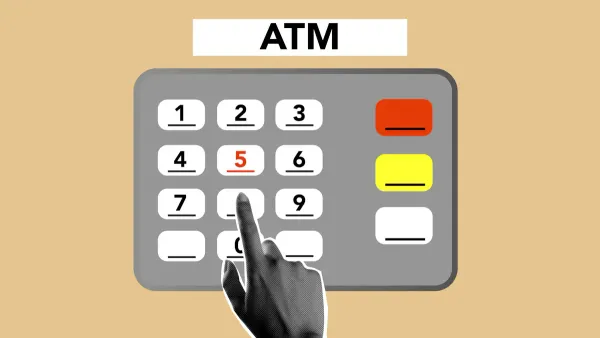
- Sometimes, you’ll see a prompt asking you to enter a pin. This is your moment to type a pin using your wireless keyboard.
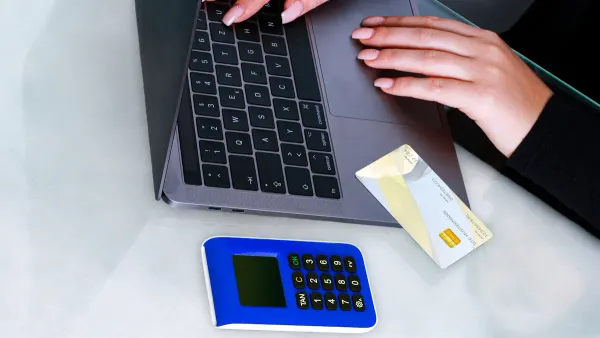
- If you use the Device Pairing Wizard, select your keyboard, click next, and then click the link that says “or enter a code.” You’ll see a number on your screen. Quickly type that number on your wireless keyboard and press Enter.
Tip: When you type a pin, nothing may appear on the screen. That’s normal. Just type the numbers and press Enter.
Default PINs
You might wonder what to do if you don’t see a pin on your screen. Many wireless keyboard models use a default pin. Here are the most common ones:
- 0000
- 1234
- 123456
Some users have tried to enter a pin like 0000 or 1234, but these don’t always work for every Microsoft Bluetooth keyboard. If you try a default 4 digit pin and it fails, check your keyboard’s manual or look online for the right code. Sometimes, you may need to enter a pin on both your wireless keyboard and another keyboard, like a USB one, to finish the pairing.
Note: Using a simple 4 digit pin like 0000 makes setup quick, but it’s not very secure. Anyone nearby could guess it. If you want better security, choose a unique pin when possible.
Confirm Connection
After you type a pin, always press Enter. Your wireless keyboard should connect right away. If you don’t see a message saying the keyboard is connected, try these steps:
- Make sure Bluetooth is turned on.
- Check that your wireless keyboard has fresh batteries.
- Try the pairing process again, and type a pin carefully.
- If you still have trouble, use a USB keyboard to help finish the setup.
If your wireless keyboard connects, you’re ready to type and use it for all your tasks. The process uses electronic components and integrated circuits inside the keyboard to talk to your computer. When you type a pin, you help these parts create a secure link.
Keyboard Pairing
Troubleshooting PIN Issues
You might run into problems when you try to pair your wireless keyboard. Sometimes, the PIN prompt does not show up, or the keyboard will not connect. Here are some common issues and solutions:
- Your wireless keyboard may not appear in the Bluetooth settings list. Try turning off and on your keyboard to reset it.
- If you see error messages during pairing, check if the batteries are fresh and correctly placed.
- The keyboard might not enter pairing mode. Hold the pairing button for at least 5 seconds until the LED flashes.
- Other devices can interfere with the Bluetooth signal. Move them away if possible.
- Outdated drivers or Bluetooth services not running can block the connection. Restart your PC and check for updates.
If the PIN prompt still does not appear, try these steps:
| Step | Description |
|---|---|
| 1 | Switch from the Settings app to the classic Control Panel for pairing. |
| 2 | Try default PINs like 0000 or 1234. |
| 3 | Check for driver issues. |
| 4 | Make sure Bluetooth services are running. |
You can also use the Device Pairing Wizard for another solution. Sometimes, turning off Fast Startup or rolling back updates helps. If your wireless keyboard still will not connect, disable and re-enable your Bluetooth receiver.
Quick Setup Tips
Want to speed up the pairing process? Try these quick tips:
- Turn on Bluetooth on your computer.
- Hold the pairing button on your wireless keyboard until the LED flashes.
- Go to Bluetooth settings and select "Add a device."
- Pick "Bluetooth" and choose your wireless keyboard from the list.
- Use Swift Pair if your PC supports it. A notification will pop up—just select "Connect."
Tip: Always check battery levels in Bluetooth settings before pairing. Low power can stop your wireless keyboard from connecting.
Your wireless keyboard uses electronic components and integrated circuits to talk to your computer. When you follow these troubleshooting steps, you help these parts work together for a smooth pairing.
You can set up your Microsoft Bluetooth keyboard in just a few steps:
- Start pairing mode.
- Enter a 4-digit PIN on your USB keyboard, then press Enter.
- Type the same PIN on your Bluetooth keyboard and press Enter.
- Watch for the blue LED to stop flashing.
If you hit a snag, try these tips:
- Use the device pairing wizard.
- Try common PINs like
0000. - Uninstall and reinstall Bluetooth drivers.
- Run the hardware troubleshooter.
“Installing the keyboard was literally a snap. Keyboard and tablet work so well together that in the four weeks I’ve used it, I have not needed to separate the two.”
Your keyboard’s smart circuits make this process smooth. You’ve got this! 🚀
FAQ
What should I do if my keyboard does not connect after entering the PIN?
Try fresh batteries. Check Bluetooth settings. Make sure the keyboard’s circuits and electronic components are working. Restart your computer and try again.
Can I use my keyboard with another device after pairing?
Yes, you can pair your keyboard with another device. Start pairing mode again. The integrated circuits inside help switch connections quickly.
Is a passcode the same as a PIN for keyboard setup?
You might see both terms. For your Microsoft Bluetooth keyboard, you enter a PIN or passcode to help the electronic components create a secure connection.