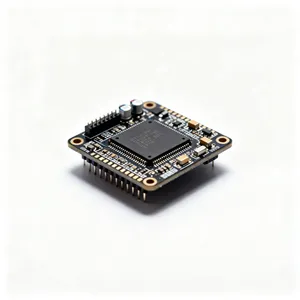
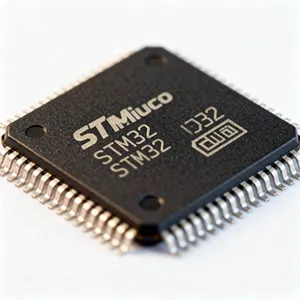
ATmega328P Datasheet A Quick Guide for 2026 Trends
The complete ATmega328P datasheet can feel overwhelming. This guide simplifies it for modern needs. The ATmega328P

The complete ATmega328P datasheet can feel overwhelming. This guide simplifies it for modern needs. The ATmega328P is not an outdated chip. It is a cost-effective and powerful microcontroller for your next project. The ATmega328P microcontroller is the core of the popular Arduino ecosystem. This link is vital for today's trends.
Recent surveys show approximately 70% of designers use Arduino-compatible boards for prototyping. This demand is high for connected devices that integrate various smart sensors.
Knowing where to look in the datasheet unlocks this microcontroller's potential for building efficient systems with complex sensors.
Key Takeaways
- The ATmega328P is a powerful chip. It is good for many projects. It is the main part of Arduino boards.
- Understanding the datasheet helps you use the chip's features. You can make projects that save power. You can also connect to other devices.
- The ATmega328P has special parts. These parts help with communication. They also help with precise control of sensors and motors.
- You can make your projects last longer. Use sleep modes to save battery power. Turn off parts of the chip when not in use.
- The datasheet shows how to connect to the internet. It also shows how to connect to other devices. This is important for smart devices.
Understanding the ATmega328P Datasheet
To master the ATmega328P microcontroller, you must first understand its core components. This section breaks down the architecture, memory, and basic input/output (I/O) controls. It connects the hardware details in the datasheet to the familiar Arduino software environment. This knowledge is the foundation for building any circuit.
Core Architecture and the Arduino Link
The ATmega328P is built on an 8-bit AVR RISC (Reduced Instruction Set Computer) architecture. This design is highly efficient. It executes most instructions in a single clock cycle. This makes the microcontroller responsive and power-friendly. This efficiency is a key reason the ATmega328P became the heart of the popular Arduino Uno board. Every time you upload code from the Arduino IDE to an Uno, you are programming this chip. The Arduino platform makes the hardware accessible, but the ATmega328P datasheet explains how it truly works.
AVR vs. ARM: A Quick Comparison Understanding where the ATmega328P fits is important. The AVR architecture is ideal for projects where cost and power consumption are critical.
Parameter AVR Microcontroller (e.g., ATmega328P) ARM Microcontroller Cost Generally less expensive Typically more expensive Power Consumption Low, ideal for battery power Higher power requirements Learning Curve Simple, easy for beginners Higher learning curve
Key Memory Specs: Flash, SRAM, and EEPROM
The ATmega328P has three types of memory, each with a specific job:
- Flash (32KB): This is where your program, or Arduino sketch code, is stored. It is non-volatile, meaning the code stays there even when the power is off.
- SRAM (2KB): Static Random-Access Memory is used to store variables your code creates and manipulates while the circuit is running. It is volatile, so all data is lost when power is removed.
- EEPROM (1KB): Electrically Erasable Programmable Read-Only Memory is for storing long-term data that needs to survive a power cycle, like configuration settings or a high score for a game.
Driving an LED and Basic I/O
The "Hello, World!" of hardware is blinking an LED. The Arduino IDE makes this simple with just a few lines of code. Functions like pinMode() and digitalWrite() are part of the Arduino software abstraction layer. This software hides the complex hardware details.
However, to become an expert, you need to know what happens underneath. These Arduino functions control the I/O ports of the ATmega328P microcontroller. You can find everything about them in the "I/O Ports" chapter of the ATmega328P datasheet. Each digital pin on the Arduino Uno pinout corresponds to a pin on the ATmega328P.
To control a pin, you must configure its registers. For example, to make an Arduino Uno pin an output for an LED, the Arduino code sets a specific bit in a Data Direction Register (DDR).
| Register | Function for a GPIO Pin |
|---|---|
DDRx | Sets pin direction (1 for output, 0 for input). |
PORTx | Writes the digital state (1 for HIGH, 0 for LOW) to an output pin. |
PINx | Reads the digital state from an input pin. |
💡 Pro Tip: An ATmega328P I/O pin can safely supply a maximum of 40 mA. A standard LED typically needs about 20 mA. Always use a current-limiting resistor in your LED circuit to protect both the pin and the LED from damage. The Arduino Uno pinout diagram is your map for connecting the circuit correctly.
Low-Power Design with the ATmega328P
Excellent low-power design is essential for 2026 trends like battery-operated IoT sensors and portable electronics. Your device's battery life can determine its success. The ATmega328P microcontroller offers powerful tools to minimize energy use. A smart design can make a battery last for months or even years. This section explores the datasheet chapters that unlock these power-saving features for your circuit.
Deep Dive into Sleep Modes
The easiest way to save power is to put the microcontroller to sleep when it has nothing to do. The ATmega328P has several sleep modes. Each mode shuts down different parts of the chip to save energy. The "Power Management and Sleep Modes" chapter of the atmega328p datasheet details these options. In the deepest sleep states, the current consumption can drop to an incredible 0.1 µA. This makes the ATmega328P perfect for a low-power circuit design.
An Arduino program can use the <avr/sleep.h> library to access these modes. This library provides simple functions to manage the sleep states. The right sleep mode for your design depends on what needs to wake the chip up.
| Sleep Mode | Power Savings | Wake-up Source | Common Use Case |
|---|---|---|---|
| Idle | Moderate | Any Interrupt, Timer | Waiting for quick serial data. |
| ADC Noise Reduction | High | ADC Conversion, Interrupt | Taking a clean analog reading. |
| Power-down | Maximum | External Interrupt, TWI | A sensor that wakes the circuit once per hour. |
| Power-save | Maximum | External Interrupt, Timer | A real-time clock that wakes the circuit periodically. |
| Standby | Maximum | External Interrupt | Similar to Power-down but with a faster startup. |
💡 Design Tip: For a battery-powered weather station, you can use Power-down mode. An external interrupt from a sensor or an internal timer can wake the Arduino, take a reading, transmit the data, and go back to sleep. This simple code strategy dramatically extends battery life.
Using the Power Reduction Register (PRR)
Sleep modes are great, but sometimes you need more precise control. The Power Reduction Register (PRR) lets you turn off individual peripherals inside the chip. If your code is not using the SPI interface or a timer, you can disable its clock. This stops it from drawing power. This is a key technique for an optimized circuit design.
You can find the PRR details in the "Power Management and Sleep Modes" section. Each bit in this register corresponds to a specific hardware module. Setting a bit in the PRR disables the clock to that module, saving power. Your code can turn peripherals on only when needed.
For example, your Arduino code might need to read from an SD card using SPI. You can write code to power the SPI module on, use it, and then power it off completely. This is much more efficient than leaving it on. The following code shows a conceptual way to manage this.
void turnOnSDcard()
{
  // Enable the clock for the SPI module
  power_spi_enable();
  // Re-enable the SPI peripheral with saved settings
  SPCR = keep_SPCR;
}

void turnOffSDcard()
{
  // Disable the SPI peripheral
  SPCR = 0;
  // Disable the clock for the SPI module to save power
  power_spi_disable();
}
This example code uses functions like power_spi_enable() and power_spi_disable(). These functions are part of a library that simplifies interacting with the PRR. The power_spi_disable() code effectively sets the PRSPI bit in the PRR. This level of control is vital for a professional hardware design. Your Arduino code can be much more efficient with this knowledge. The right code makes your circuit last longer on a single battery charge.
IoT and Wireless Communication
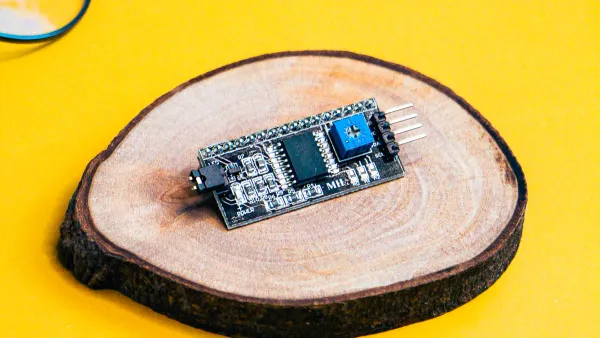
Connecting your project to the internet or other devices is a core requirement for modern electronics. The ATmega328P microcontroller provides three primary communication protocols for this purpose. These protocols are your tools for sensor integration and data transmission. Understanding them is key to building a successful IoT device. This section explores the datasheet chapters that explain SPI, I2C, and USART, linking them to popular modules and a professional design workflow.
SPI for High-Speed IoT Modules
The Serial Peripheral Interface (SPI) is a fast, synchronous communication protocol. It is ideal for connecting devices that need to exchange large amounts of data quickly. A common use case in an IoT design is interfacing the ATmega328P with high-speed modules like an ESP8266 for Wi-Fi or a LoRa module for long-range radio communication. The "Serial Peripheral Interface" chapter of the atmega328p datasheet details how to configure this powerful tool.
To control SPI, you work directly with three main registers. This level of control is hidden by the Arduino SPI library but is essential for an optimized design.
- SPCR (SPI Control Register): This is the main configuration register. You use it to enable SPI, set the ATmega328P as a master device, and choose the clock speed.
- SPSR (SPI Status Register): This register provides status flags. For example, the
SPIFflag tells you when a data transfer is complete. - SPDR (SPI Data Register): This is the data buffer. You write a byte to this register to send it, and you read from it to get received data.
A typical low-level SPI setup and transmission code looks like this. The code first configures the SPI control register. Then, it sends data by loading it into the data register and waiting for the status flag to signal completion.
// Enable SPI, set as master, and clock to fosc/128
SPCR = (1 << SPE) | (1 << MSTR) | (1 << SPR1) | (1 << SPR0);

void SPI_masterTransmitByte(uint8_t data)
{
  // Load data into register
  SPDR = data;

  // Wait for transmission complete by polling SPIF flag in SPSR
  while(!(SPSR & (1 << SPIF)));
}
This direct register manipulation in your code gives you precise control over the communication link in your circuit.
I2C/TWI for Sensors and Displays
The Inter-Integrated Circuit (I2C) protocol is perfect for connecting multiple sensors and peripherals to a single microcontroller. The ATmega328P refers to I2C as the Two-Wire Interface (TWI). It only requires two wires: SDA (data) and SCL (clock). This makes your circuit design simple and clean. It is the go-to choice for adding multiple sensors, such as the popular BME280 environmental sensor, or for driving an OLED or LCD screen. The "Two-wire Serial Interface" chapter in the datasheet explains the hardware.
The ATmega328P's TWI module supports two standard I2C bus speeds, giving you flexibility in your design.
- 100 kHz (Standard Mode)
- 400 kHz (Fast Mode)
The Arduino Wire.h library simplifies I2C communication. The following example code shows how an Arduino can read temperature and humidity data from a BME280 sensor. This code initializes the sensor and then repeatedly reads data from it, sending the output to the serial monitor.
#include <Wire.h>
#include <Adafruit_Sensor.h>
#include <Adafruit_BME280.h>

Adafruit_BME280 bme; // I2C

void setup() {
  Serial.begin(9600);
  if (!bme.begin(0x76)) {
    Serial.println("Could not find a valid BME280 sensor, check wiring!");
    while (1);
  }
}

void loop() {
  Serial.print("Temperature = ");
  Serial.print(bme.readTemperature());
  Serial.println(" *C");

  Serial.print("Humidity = ");
  Serial.print(bme.readHumidity());
  Serial.println(" %");

  delay(2000);
}
This code is a great starting point for a weather station project. You can easily add more I2C sensors to the same two-pin bus. You can also connect a small liquid crystal display (LCD) to show the sensor data. A liquid crystal display is a low-power output device. Many LCD modules use I2C, simplifying the pin connections in your circuit.
💡 Circuit Tip: I2C bus drivers are "open-drain," meaning they can only pull a pin LOW. They cannot drive it HIGH. For this reason, pull-up resistors on the SDA and SCL lines are essential for reliable communication. While the Arduino enables weak internal pull-ups, they are often insufficient for a stable circuit, especially at 400 kHz. For a robust design, add external 4.7kΩ pull-up resistors to each pin. This ensures sharp signal transitions and prevents data corruption.
USART for Serial and Bluetooth Links
The Universal Synchronous and Asynchronous Receiver-Transmitter (USART) is a highly flexible serial communication tool. On an Arduino, you use it every time you open the Serial Monitor to debug your code. The Serial.print() function sends data from the ATmega328P's transmit (TX) pin to your computer.
Beyond debugging, the USART is vital for connecting to many wireless modules. You can connect an HC-05 Bluetooth module to create a wireless link to a smartphone. You can also interface with cellular modems to give your project internet access from anywhere. The "USART" chapter of the datasheet provides all the register details.
| Register | Function for Baud Rate | Function for Frame Format | Function for Data Transmission |
|---|---|---|---|
| UBRR | Contains the value for setting the USART baud rate. | N/A | N/A |
| UCSR0A | Can double the transmission speed. | N/A | Contains status flags like UDRE0 (Data Register Empty). |
| UCSR0B | N/A | Helps set the character size (e.g., 8 bits). | Enables the receiver (RXEN0) and transmitter (TXEN0). |
| UCSR0C | N/A | Sets mode (async/sync), parity, and number of stop bits. | N/A |
| UDR | N/A | N/A | The data register. Write to this register to send data; read from it to receive data. |
Connecting a 3.3V module like the HC-05 to a 5V Arduino requires care. The ATmega328P's 5V output on its TX pin can damage the HC-05's 3.3V RX pin. A simple voltage divider circuit on this pin is a necessary part of a safe hardware design. You can use the SoftwareSerial library in your Arduino code to use other digital pins for serial communication, leaving the main hardware serial pins free.
The following code shows how to set up a software serial port on pin 9 (RX) and pin 10 (TX) to communicate with a Bluetooth module.
#include "SoftwareSerial.h"

SoftwareSerial bluetooth(9, 10); // RX, TX

void setup() {
  // Start hardware serial for debugging
  Serial.begin(9600);
  // Start software serial for Bluetooth module
  bluetooth.begin(9600);
  bluetooth.println("Bluetooth link active!");
}

void loop() {
  if (bluetooth.available()) {
    Serial.write(bluetooth.read()); // Forward data from Bluetooth to Serial Monitor
  }
  if (Serial.available()) {
    bluetooth.write(Serial.read()); // Forward data from Serial Monitor to Bluetooth
  }
}
This code creates a simple bridge, allowing you to send and receive data wirelessly. This basic setup is the foundation for countless IoT applications, from remote control to wireless sensor data logging. A liquid crystal display (LCD) could be added to this circuit to show the status or received data.
While the ATmega328P is a powerful tool for prototyping and small-scale production, complex industrial IoT projects often require more processing power and specialized hardware support. For those next-level challenges, partnering with a design solutions company is a strategic move. For instance, Nova Technology Company (HK) Limited, a designated HiSilicon solutions partner, provides expert chip-level solutions and system integration. Such partners accelerate development by handling the intricate hardware and software engineering required to bring a robust, market-ready product to life.
Advanced Microcontroller Sensing and Control
Beyond simple I/O, the ATmega328P microcontroller offers advanced peripherals for precise measurement and control. These tools allow your Arduino projects to interact with the analog world, manage power output efficiently, and react instantly to external events. Mastering these features is the key to building sophisticated and responsive devices. This section covers the datasheet chapters for the ADC, PWM timers, and external interrupts.
Precision with the Analog-to-Digital Converter
Many sensors, like temperature or light sensors, provide an analog voltage as their output. The ATmega328P microcontroller uses an Analog-to-Digital Converter (ADC) to translate this analog input into a digital value your code can use. The "Analog-to-Digital Converter" chapter of the datasheet is your guide. The ATmega328P features a 10-bit Successive Approximation ADC. This means it maps an input voltage to a digital number between 0 and 1023. This digital data is stored across two registers, ADCH and ADCL.
For accurate measurements from your sensors, a stable reference voltage is critical. While the Arduino often uses the 5V supply, this can fluctuate. The ATmega328P has a stable internal 1.1V reference that is perfect for a battery-powered circuit.
💡 Pro Tip for Stable Readings: Use the internal reference for your analog sensor to get consistent data even if your power supply voltage changes.
- Set the reference in your Arduino code with
analogReference(INTERNAL);.- Measure the actual voltage on the AREF pin with a multimeter. It might be 1.08V or 1.12V.
- Use this measured value in your code's calculations for the most precise analog data conversion.
The ADC's speed and accuracy are controlled by a prescaler. This divides the main 16MHz clock to a speed suitable for the ADC, ideally between 50kHz and 200kHz. A higher prescaler value gives more accurate data but is slower.
| Prescaler | ADC Clock (at 16MHz) | Typical Resolution |
|---|---|---|
| 128 | 125 kHz | 10-bit (Max Accuracy) |
| 64 | 250 kHz | ~9-bit |
| 32 | 500 kHz | ~8-bit |
| 16 | 1 MHz | Reduced Accuracy |
PWM Control with Timer/Counters
Pulse Width Modulation (PWM) is a technique to create a variable analog output from a digital pin. It works by rapidly switching a pin ON and OFF. The ratio of ON time to OFF time, or duty cycle, determines the average voltage. This is perfect for dimming an LED or controlling the speed of a DC motor. The ATmega328P has two 8-bit timers (Timer0, Timer2) and one 16-bit timer (Timer1) that can generate PWM signals. You can find the details in the "8-bit Timer/Counter0" and related timer chapters.
The Arduino analogWrite() function uses these timers to generate a PWM output. To control PWM directly, you use several registers:
- TCCRxA/B: These registers configure the PWM mode (e.g., Fast PWM) and set the clock prescaler, which determines the PWM frequency.
- OCRxA/B: These Output Compare Registers set the duty cycle. Writing a value from 0 (always off) to 255 (always on for an 8-bit timer) changes the brightness of an LED connected to the output pin.
The following code concept shows how to increase the brightness of an LED by changing the duty cycle value in a loop. This gives you direct control over the PWM output.
// Assume Timer2 is set up for Fast PWM on its output pin.
for (int dutyCycle = 0; dutyCycle <= 255; dutyCycle++) {
  // Update the Output Compare Register to change LED brightness
  OCR2A = dutyCycle;
  _delay_ms(10); // Wait a moment to see the change
}
Responsive Systems with External Interrupts
Interrupts make a microcontroller highly responsive. Instead of constantly checking an input pin in your code (polling), an interrupt forces the processor to pause its current task and run special code immediately when an event occurs. This is essential for reacting to a button press or a signal from a sensor. The ATmega328P has two external interrupt pins: INT0 (physical pin 2) and INT1 (physical pin 3).
You configure interrupts using two main registers, detailed in the "External Interrupts" chapter.
- EIMSK (External Interrupt Mask Register): This register enables or disables INT0 and INT1.
- EICRA (External Interrupt Control Register A): This register sets the trigger condition.
You can make the interrupt trigger on different signal changes on the input pin.
| ISCn1 | ISCn0 | Interrupt Trigger Condition |
|---|---|---|
| 0 | 0 | A LOW level on the pin. |
| 0 | 1 | Any logical change on the pin. |
| 1 | 0 | The falling edge of a signal on the pin. |
| 1 | 1 | The rising edge of a signal on the pin. |
The following Arduino code configures INT0 to trigger on a falling edge, which is useful for detecting a button press. When the event happens, the special ISR(INT0_vect) function runs automatically.
void setup() {
  // Set INT0 to trigger on a falling edge
  EICRA |= (1 << ISC01);
  EICRA &= ~(1 << ISC00);
  // Enable the INT0 interrupt
  EIMSK |= (1 << INT0);
  // Enable global interrupts
  sei();
}

// This is the Interrupt Service Routine for INT0
ISR(INT0_vect) {
  // Code to run when the interrupt occurs
  // For example, toggle an LED.
}
This guide showed you how to use the ATmega328P for your next project. We covered power management, IoT connectivity, and advanced control for your Arduino. The ATmega328P microcontroller remains a great choice for any Arduino project. Its power is unlocked by strategically using the atmega328p datasheet. This is true for any Arduino project.
View the datasheet as your practical toolkit. It will help you build innovative and efficient systems with your Arduino. Your next Arduino project will be better for it.
FAQ
How is direct register code different from Arduino IDE functions?
Direct register code offers precise hardware control. The Arduino IDE software uses functions like digitalWrite() for simplicity. This software hides the hardware details. Your custom code can directly set a pin output for an LED, giving you more power than the standard Arduino IDE software code.
What is PWM and how does it dim an LED on the Uno?
PWM (Pulse Width Modulation) creates an analog output from a digital pin. The Uno uses PWM to control an LED's brightness. Your code changes the PWM duty cycle. A good tutorial shows how this PWM code works. This PWM output is a key feature for many Arduino projects.
PWM on the Uno The Uno has 6 pins that support PWM output. This hardware feature is great for controlling an LED or a small motor. Your code in the Arduino IDE can easily use this PWM feature. A tutorial can explain the PWM code.
How do I connect a sensor or LCD to my Uno?
You connect a sensor or LCD to a specific digital or analog pin. The hardware connection depends on the sensor type. The software code reads sensor data or sends display data to the LCD. A tutorial for your sensor or LCD will provide the correct pin and code.
| Component | Connection Type | Purpose | | : | : | : | | Digital Sensor | Digital Pin | Reads HIGH/LOW data. | | Analog Sensor | Analog Pin | Reads a range of voltage data. | | I2C LCD | SDA/SCL Pin | Displays text data from your code. |
This hardware and software setup is a common first project. The Arduino IDE software has libraries to help with the code for a sensor or LCD.
Why won't my simple LED project work?
Check your hardware and software. Ensure the LED is connected to the correct output pin on the Uno. The long leg of the LED (anode) needs the positive connection. Your Arduino IDE code must set the pin as an output. A simple tutorial can help debug the hardware and software code.
How does the Uno read analog sensor data?
The Uno uses an analog pin to read voltage from a sensor. This analog data is converted to a digital value by the hardware. Your software code uses analogRead() to get this digital data. A tutorial can show you how to process this analog sensor data in the Arduino IDE.